Product · Document Management

Construction document management that controls every revision

BuildCore keeps one controlled register for every drawing, calculation and report on the project. Revision codes are assigned for you, reviews run through the workflows you define, and approved documents leave by transmittal — with the acknowledgement, the response and the audit trail on record.
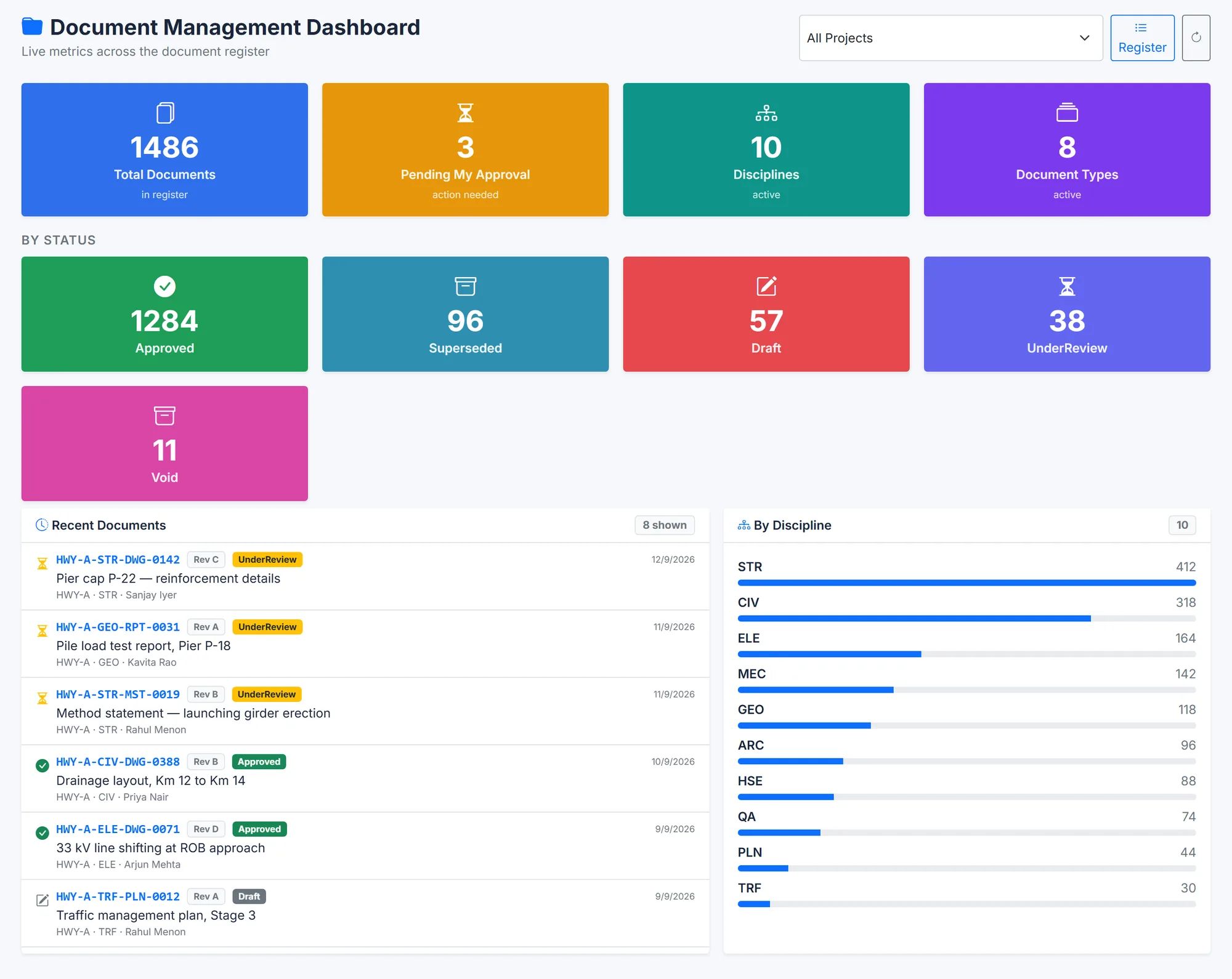
BuildCore's Document Management dashboard: 1,486 documents in the register, 3 pending the user's approval, 10 disciplines and 8 document types; status tiles for 1,284 approved, 96 superseded, 57 draft, 38 under review and 11 void; a list of recent documents with revision and status; and a bar per discipline.
The document register at a glance — status, recent revisions and volume by discipline. Sample data.
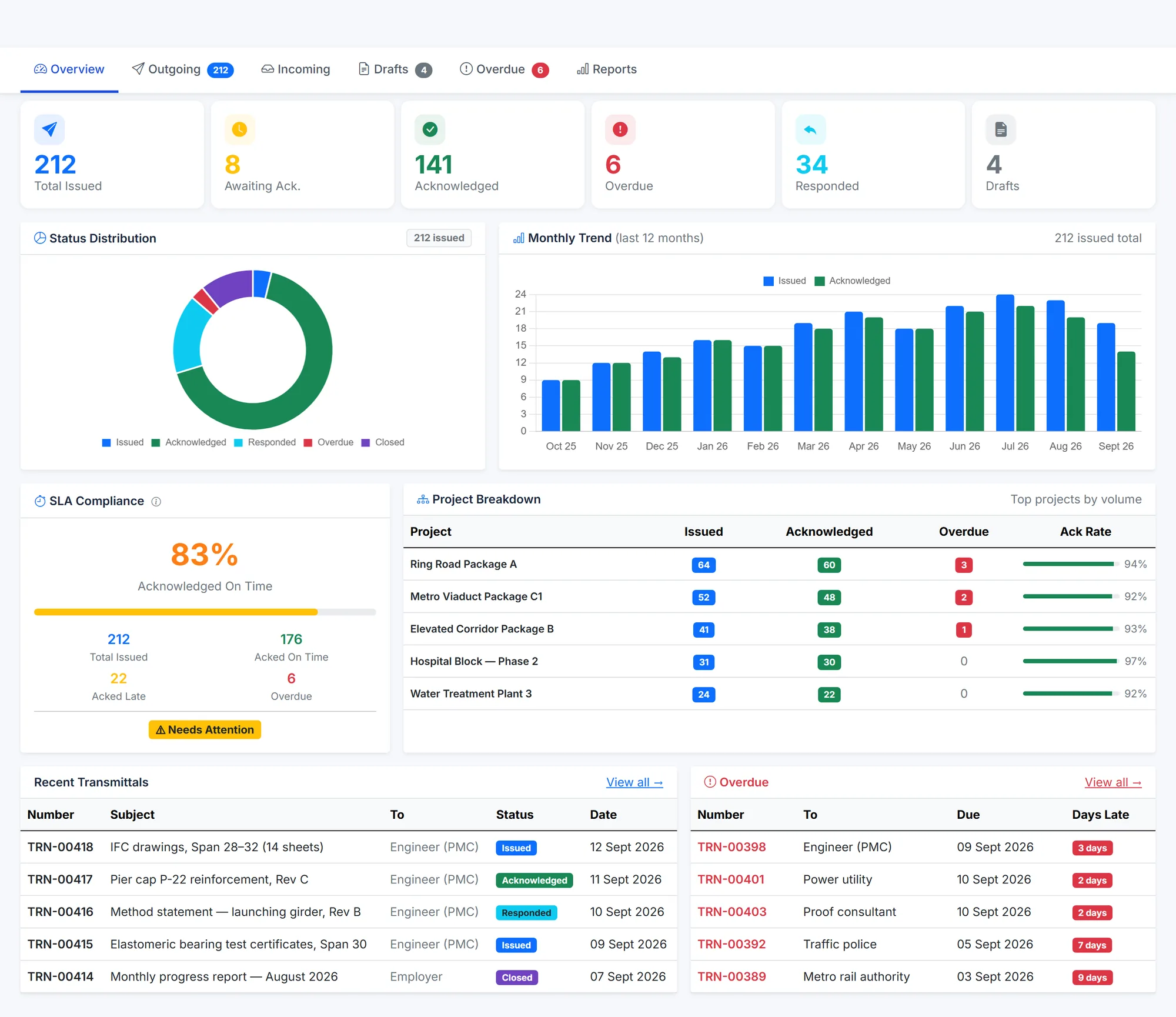
BuildCore's Transmittals overview: 212 issued, 8 awaiting acknowledgement, 141 acknowledged, 6 overdue, 34 responded and 4 drafts; a status doughnut; a 12-month issued-versus-acknowledged chart; an SLA card showing 83% acknowledged on time; acknowledgement rates by project; and tables of recent and overdue transmittals.
Transmittals — acknowledgement SLA, overdue items and the monthly trend. Sample data.
Why it matters

Most document disputes start with the wrong revision

When drawings live in shared folders and email, three questions have no reliable answer — and each one turns into cost on site.

Which revision is current?

The site builds from whatever copy it has. One superseded drawing on the wrong desk can cost a pour.

Who approved it, and when?

Reviews happen in inboxes. When a dispute comes, nobody can show who commented, who approved and what they were looking at.

Did they receive it?

A drawing sent is not a drawing received. Without acknowledgements, the transmittal record can't prove what the other party had.

Capabilities

What Document Management does

Register and revisions

  • Search the register by number or title, with filters and saved searches
  • Revision codes assigned automatically — numeric (00, 01) or letter (A, B) schemes, by issue purpose such as IFR, IFA, AFC and ASB
  • Uploads checked against allowed file types and their real content; exact duplicates rejected by fingerprint
  • Check-out and check-in, so everyone can see who is working on a document
  • Custom fields and configurable register columns

Review and approval

  • Workflow templates with ordered or parallel steps — review, approve, sign, notify — each with a due date
  • Reviewers assigned from an IDC matrix, by discipline and document type
  • Approve or reject in batches
  • Markups on a revision, resolved or rejected
  • Compare two revisions — text for PDF, Word and PowerPoint, cells for spreadsheets — and export the differences to Excel

Issue by transmittal

  • Transmittals from draft to issued, acknowledged, responded and closed, with overdue marking and reminder emails
  • Response codes C1 to C4: approved-with-comments needs the comments, not-approved needs a resubmission date
  • External recipients acknowledge and respond through an expiring link — no login needed
  • The transmittal email carries the cover PDF and the files themselves

Control and audit

  • Permissions per document — allow or deny by user or role, with an expiry date
  • A controlled-copy watermark on approved documents when they are downloaded
  • Document packages of approved revisions, sealed with a checksum and shared by a link you can revoke
  • Engineering change requests through to change notices, with a signable PDF
  • An audit trail of every change, with the old and new values
How it works

From upload to acknowledged issue

1

Upload

The revision is coded and the file checked.

2

Review

The workflow starts; reviewers are notified and the clock runs.

3

Decide

Each step approves or rejects. A rejection ends the workflow.

4

Approve

The revision and the document are marked Approved.

5

Issue

By transmittal or as a sealed package.

6

Respond

Acknowledged, answered with C1–C4, and closed.

Outputs

What comes out of it

  • PDF: document print with cover sheet, transmittal cover letter, package cover, change request form
  • Excel: register, package manifest, revision comparison
  • CSV: the master document register
  • ZIP: package dossier and bulk download
Questions

Document Management — common questions

Yes. The recipient gets an expiring link — 30 days by default — to acknowledge the transmittal and respond with a C1–C4 code. Every step is written to the transmittal's audit timeline.

Automatically, from the purpose of issue. A project can use numeric (00, 01) or letter (A, B) schemes, and reviewers' comment copies get codes of their own.

Yes. Bulk import takes a CSV of the register and an optional ZIP of the files, and runs as a background job with its progress shown.

Access can be set on the document itself — allowed or denied for users and roles, with an expiry date — on top of the project and discipline folder permissions.

See it on your project

See Document Management on your own project

Tell us about your project and we'll shape the demo around Document Management and the modules it connects to.